Convert
Turn many LAS, CSV, text or Excel log files into LAS 2.0, LAS 3.0, CSV or Excel in one go, with optional feet ↔ metres depth conversion.
LOG FILES IN THE BROWSER
Three simple tools for well-log files: convert many files at once, combine the logging runs of one well into one log, and cut a log into the pieces you need. Your original files are never changed.
Free to use · LAS 2.0, LAS 3.0, CSV and Excel In LogPlot Studio: the Log files buttons Convert, Merge and Split, or File → Merge logs…
THREE TOOLS
Open the tools from the Log files group in the LogPlot Studio ribbon, or from the File menu. Each tool has its own tab at the top, so you can move from one to another.
Turn many LAS, CSV, text or Excel log files into LAS 2.0, LAS 3.0, CSV or Excel in one go, with optional feet ↔ metres depth conversion.
Combine logging runs, repeat sections or separate curve files of one well into one composite log, with the depths lined up for you.
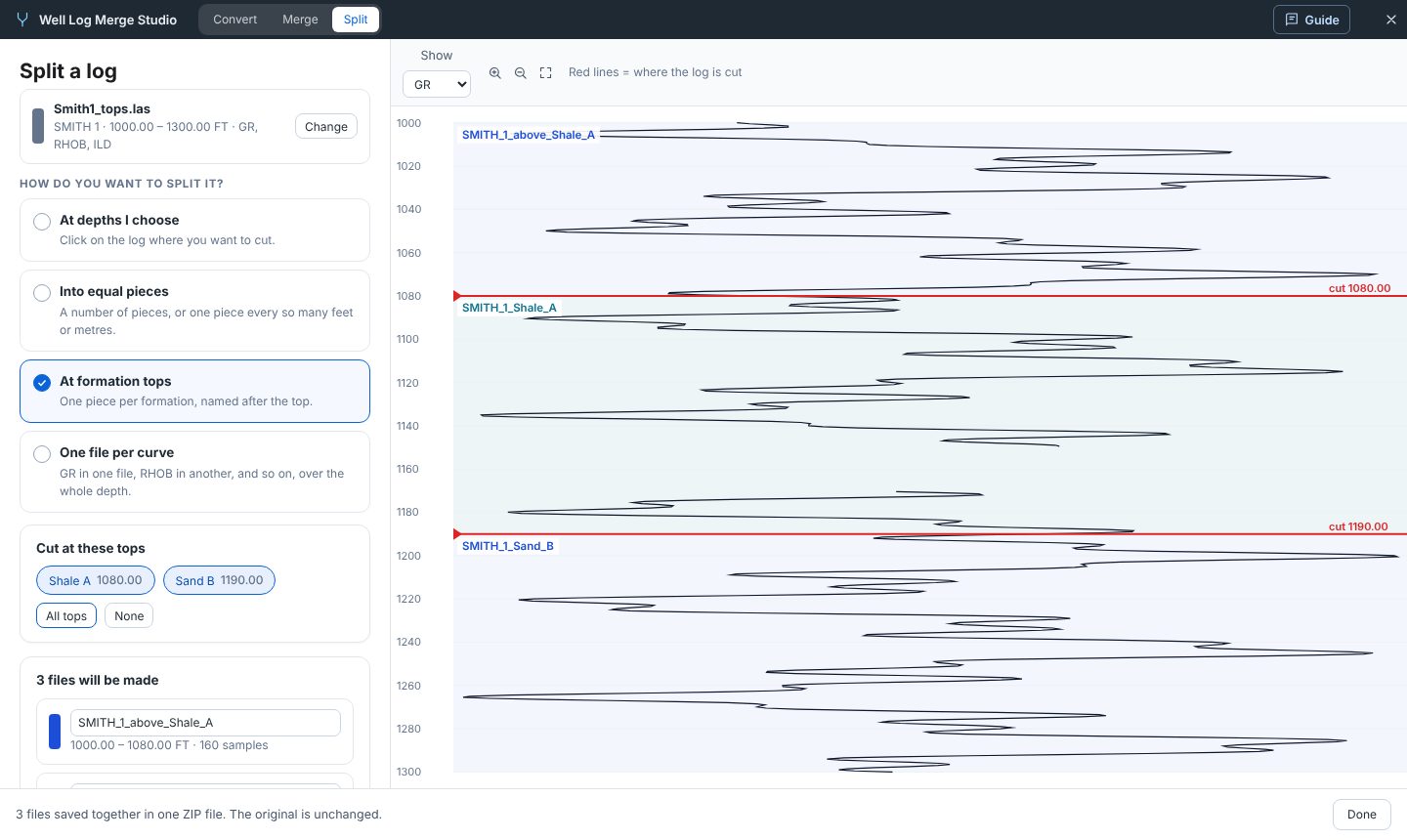
Cut a log at depths you choose, into equal pieces, at formation tops, or into one file per curve, and save all the pieces at once.
Results are new files or new wells. Each file records where it came from: the source files, depth shifts and how it was made.
MERGE IN FOUR STEPS
Logs of the same well often come in pieces: a shallow run and a deep run, a repeat section, or curves in separate files. The Merge tool walks you through four plain steps.
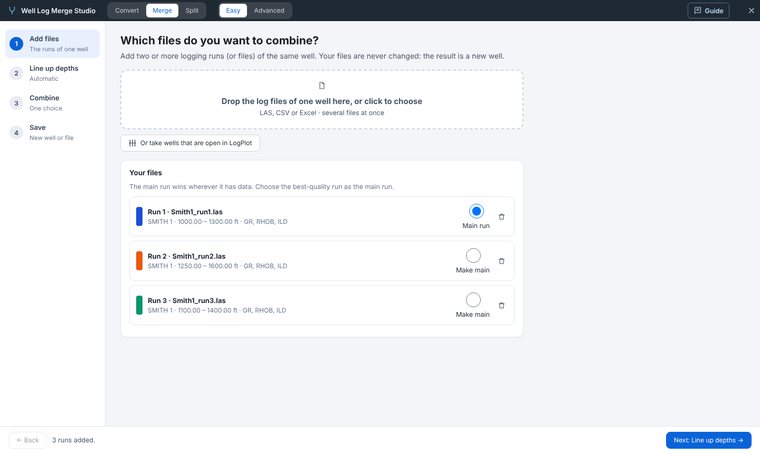
Drop the LAS, CSV or Excel files of one well, or take wells already open in LogPlot Studio. Choose the best run as the main run. Files of different wells or depth units are flagged.
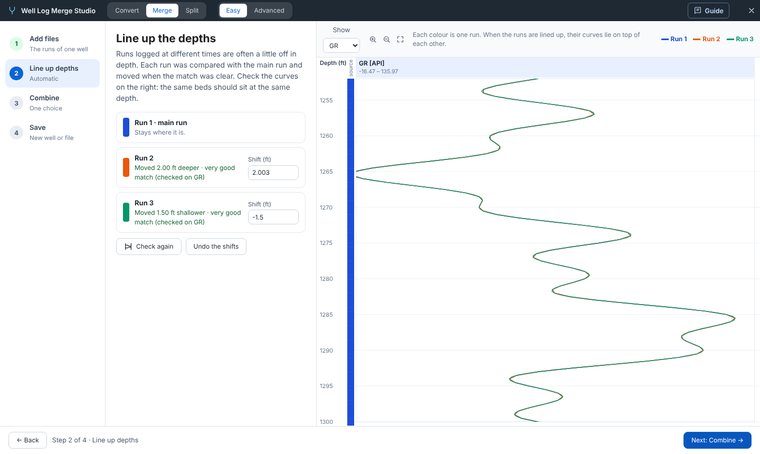
Each run is compared with the main run on a common curve and moved when the match is clear. You see how far and how good the match is, and can type your own shift.
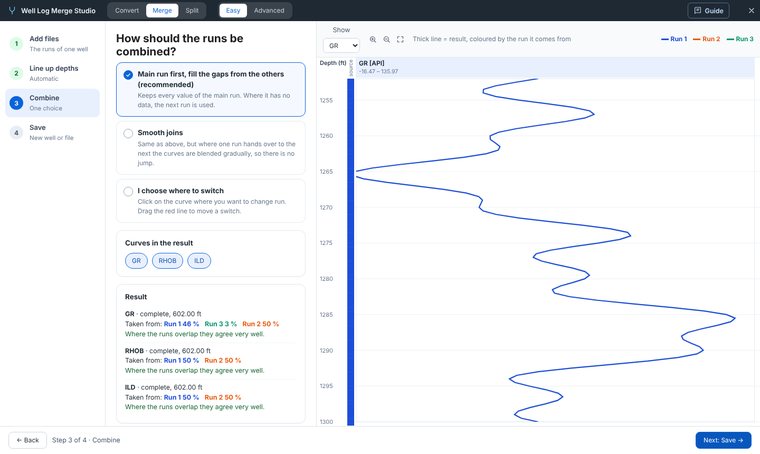
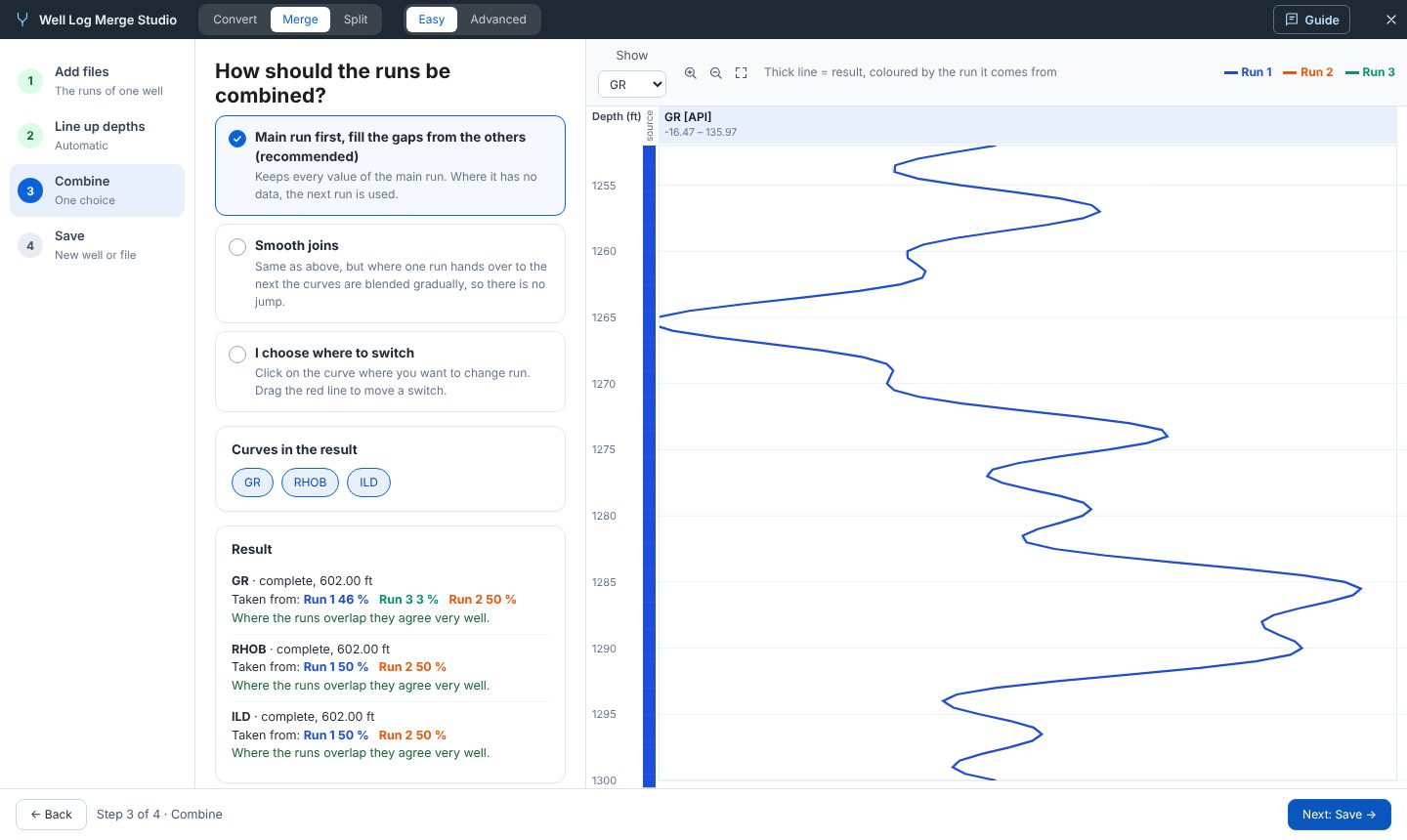
Keep the main run and fill its gaps from the others, blend the runs smoothly where they hand over, or click where you want to switch runs.
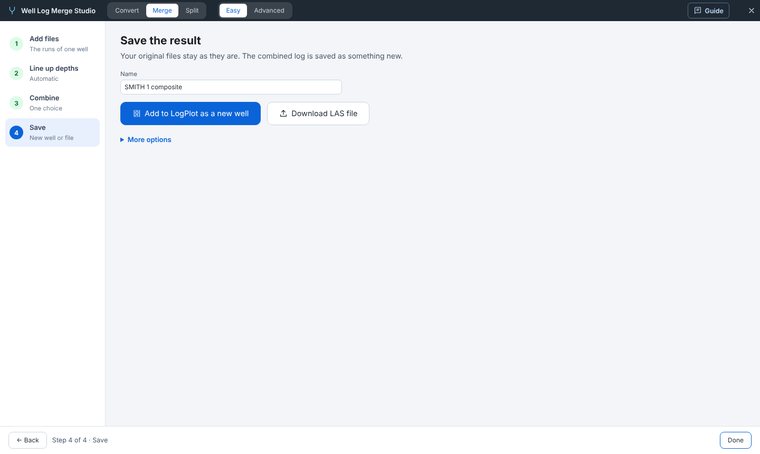
Add the composite to LogPlot Studio as a new well or download it as LAS. More options: LAS 3.0, CSV, Excel, or new curves on an existing well.
Need full control? Switch to Advanced for per-curve methods, control points for piecewise depth alignment, blend windows, quality rules such as washout (caliper minus bit size), and a full quality check with overlap differences, RMSE and correlation.
SPLIT
Open one log, choose how to cut it and check the list of files before saving:
Every sample goes into exactly one piece, with its original value, and formation tops stay with their interval. Rename any piece, then download them all in one ZIP file or add them to LogPlot Studio as new wells.
CONVERT
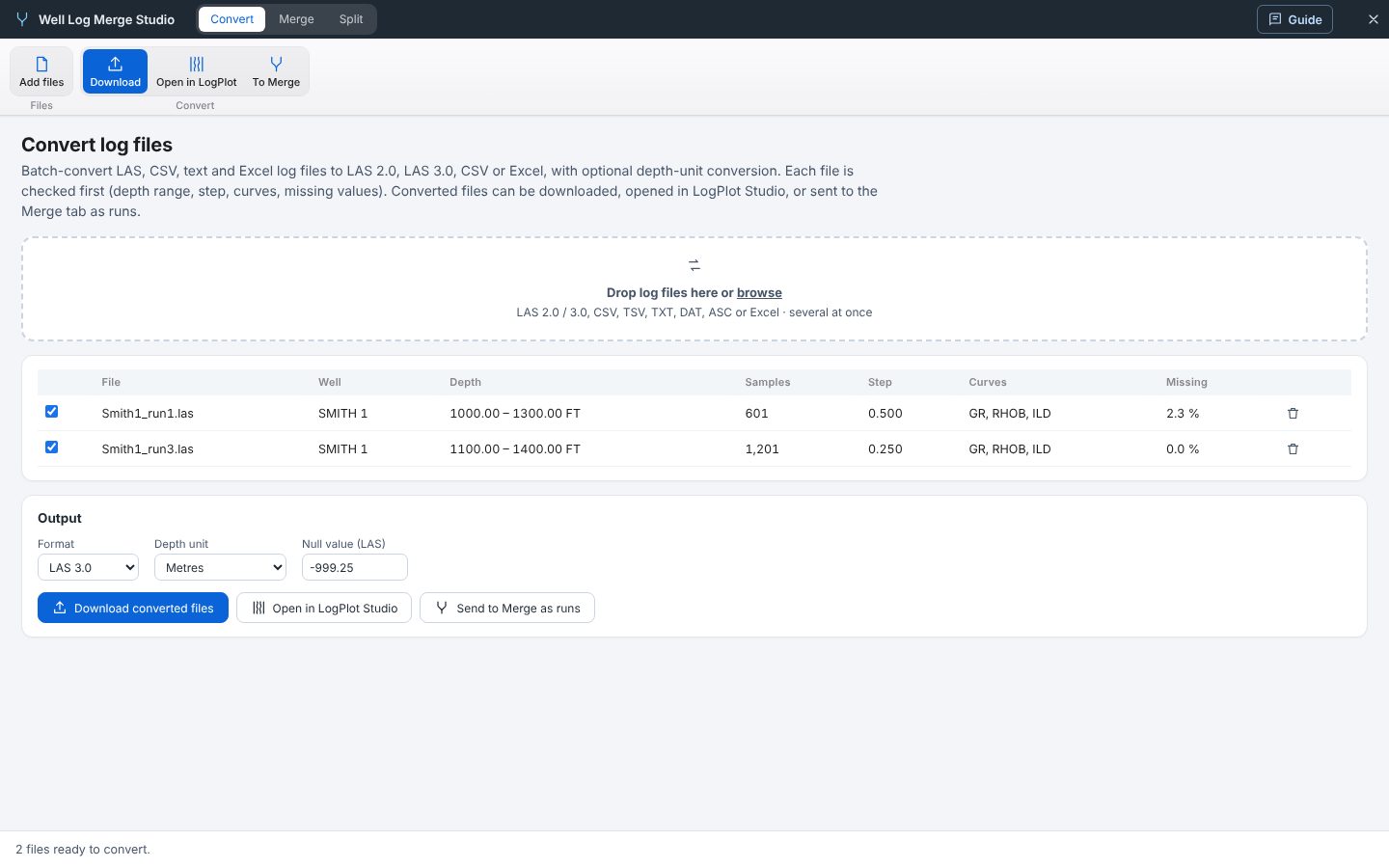
Drop several log files, check them in the list, and choose the output: LAS 2.0, LAS 3.0, CSV or Excel. Depths can stay as they are or be converted between feet and metres, and you can set the LAS null value.
Download the converted files, open them straight in LogPlot Studio, or send them to the Merge tab as runs. To turn a spreadsheet with your own column layout into LAS, use File → Convert to LAS…. Read more about the format in LAS 3.0 and LAS 2.0 and LAS file format explained.
QUESTIONS
A well is often logged in several runs, or its curves arrive in separate files. Merging puts them together into one composite log on one depth reference: the main run is kept wherever it has data, and its gaps are filled from the other runs, or the runs are joined where you choose.
No. Merge, Split and Convert always make new files. The composite or the pieces are added to LogPlot Studio as new wells or downloaded; the original files and wells stay as they were.
The Merge tool compares a common curve, normally gamma ray, of each run with the main run and moves the run when the match is clear. It shows how far it moved each run and how good the match is. When the match is unclear it does not move the run, and you can type your own shift. Lining up depths is a suggestion you can check on the chart; it does not guarantee the depths are right.
Yes. Choose “I choose where to switch”, click on the curve where you want to change run, and drag the red line to move the switch. You can also ask for smooth joins, which blend the two runs gradually over a short interval so there is no jump.
At depths you click or type, into a number of equal pieces (or one piece every so many feet or metres), at the formation tops of the log, or into one file per curve. Each piece keeps its original samples and the formation tops in its interval.
LAS 2.0 and LAS 3.0, CSV and text tables, and Excel workbooks can be opened. Results can be saved as LAS 2.0, LAS 3.0, CSV or Excel. Several split pieces are downloaded together in one ZIP file.
No. Convert, Merge and Split are free: opening files in them and downloading the results does not use your data-file imports. A result you add to LogPlot Studio as a new well is opened there like any other data file. Current allowances are on the pricing section of the home page.
On your computer. Files are read and processed in your browser and saved as downloads or in a folder you choose; they are not uploaded to or stored on the Subsurface Studio website.
Convert, merge and split LAS, CSV and Excel logs in your browser, without installing software.
Open the log toolsSee pricing · Open and plot LAS files online · Read the guides